

What is in the 2026.12 update
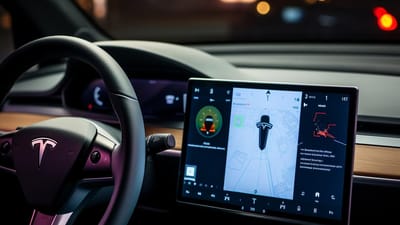
Tesla's 2026.12 update focuses on making existing systems more responsive rather than adding flashy gimmicks. The changes hit Autopilot, the screen interface, and how the car handles battery power. It feels like a mature step toward better predictive driving.
Initial reports from TeslaFi show a fairly rapid rollout, with over 363 vehicles already running the new software as of April 14th. While early adoption rates are typical, the community is already buzzing about the changes. Some owners have reported minor bugs, particularly surrounding the new infotainment features, but nothing major seems widespread at this point.
This update feels less about flashy new features and more about polishing what Tesla already does well. The focus appears to be on making existing systems more intelligent and responsive. It’s a mature approach to software development, and one I appreciate. It's a good sign to see Tesla prioritizing refinement over simply adding new bells and whistles.
Autopilot gets predictive navigation
The most talked-about addition in 2026.12 is undoubtedly the enhanced Autopilot, specifically the introduction of predictive navigation. This isn’t about achieving full self-driving, it’s about making Autopilot smarter. The system now uses real-time traffic data, historical driving patterns, and information about upcoming road conditions to anticipate lane changes, merges, and even speed adjustments.
The car now tries to anticipate what's coming. This makes lane changes and speed adjustments feel less robotic. This is still Level 2 autonomy, so you have to keep your hands on the wheel and stay alert. It's a helper, not a chauffeur.
Early testing suggests a slight improvement in range, likely due to the system optimizing speed and acceleration for upcoming traffic conditions. However, the impact is relatively small – don’t expect a dramatic increase in efficiency. A more noticeable benefit is the reduction in phantom braking events, a common complaint among Autopilot users. I’m also curious to see how this impacts energy consumption during highway driving, particularly with elevation changes.
The system learns over time, so the more you drive with predictive navigation enabled, the better it should become at anticipating your needs. Tesla recommends enabling data sharing to help improve the system for all users. While the benefits are subtle now, I believe predictive navigation has the potential to significantly improve the Autopilot experience in the long run.
Infotainment Overhaul: Theater Mode & Streaming
Tesla has given the infotainment system a significant facelift in 2026.12. Theater Mode is a standout improvement, now supporting higher resolutions and a wider range of video codecs. This means better picture quality and fewer compatibility issues with different video formats. It’s a welcome upgrade for those who enjoy streaming content while parked.
New streaming app integrations are also present. Netflix, Hulu, and Disney+ are all supported out of the box, and Tesla has hinted at adding more services in future updates. The addition of Apple Music is particularly welcome for iOS users. The overall responsiveness of the infotainment system seems slightly improved, but it’s not a night-and-day difference.
However, the usability changes are proving divisive. The new menu structure is different, and some owners are finding it less intuitive than the previous layout. I personally find myself taking a bit longer to find certain settings. It's a matter of getting used to it, but the learning curve is definitely there. It's a good reminder that 'better' is subjective when it comes to user interfaces.
- Theater mode supports higher resolutions for better picture quality.
- Netflix, Hulu, and Disney+ are natively integrated.
- Apple Music is available for native streaming.
- The menu structure has been redesigned.
Peak charging and battery preconditioning
Tesla continues to refine its energy management capabilities with the 2026.12 update. The new "Peak Charging" feature is designed to help owners reduce charging costs by automatically scheduling charging sessions during off-peak hours. This is particularly useful for those with time-of-use electricity plans. The system learns your driving habits and electricity rates to optimize charging schedules.
Preconditioning has also been improved, with the system now more accurately predicting the optimal time to begin warming or cooling the battery. This results in faster charging speeds and improved range in extreme temperatures. I’ve noticed a slight improvement in cold weather charging times, but it's not a dramatic difference. It’s still crucial to pre-condition the battery before a long drive in cold weather.
The energy graph has been updated with more detailed information about energy consumption and regeneration. While it’s still not perfect, it provides a more granular view of how your driving habits impact energy efficiency. The addition of real-time energy consumption data is a nice touch. It allows for more conscious driving and efficient energy use.
I think these changes are particularly important as electricity prices continue to rise. Optimizing energy management isn’t just about saving money; it’s about reducing your carbon footprint and maximizing the efficiency of your Tesla.
Phone Key Improvements: Ultra-Wideband Support
The 2026.12 update adds Ultra-Wideband (UWB) support for the Phone Key. UWB is more accurate than Bluetooth, so the car unlocks more reliably when you walk up to it. It solves that annoying lag where you're standing at the door waiting for the handle to present.
UWB works by precisely measuring the time it takes for a signal to travel between your phone and the car. This allows the system to pinpoint your phone’s location with much greater accuracy than Bluetooth. As a result, you can unlock the car even when your phone is in your pocket or bag, without having to fumble for it. It’s a small convenience, but it adds up over time.
Currently, UWB support is limited to newer iPhone models (iPhone 15 and later). Android compatibility is expected to follow, but Tesla hasn’t announced a specific timeline. If you have a compatible phone, the setup process is straightforward. Just follow the instructions in the Tesla app. If you’re still using Bluetooth, the experience remains largely unchanged.
Hidden Gems: Easter Eggs & Minor Tweaks
No Tesla update is complete without a few hidden Easter eggs. 2026.12 is no exception. Owners have discovered a new "Retro Mode’ that changes the infotainment display to a pixelated, 8-bit aesthetic. It"s a fun nod to classic video games. There's also a new holiday-themed light show that can be activated through the Toybox.
Beyond the Easter eggs, there are a number of smaller, less-publicized changes. The voice command system has been tweaked, with improved recognition accuracy. Several minor bugs have been fixed, including an issue with the automatic windshield wipers and a glitch in the navigation system. The community has been particularly vocal about the bug fixes.
It’s these small details that often make the biggest difference in the overall user experience. Tesla clearly listens to its customers and is committed to continuously improving its software. It’s a testament to the company’s dedication to innovation.
No comments yet. Be the first to share your thoughts!