


Turn off Tesla features to extend range: start here
Before you begin turning off Tesla features to extend range, it helps to understand what is actually consuming energy. Modern Teslas manage power through a complex ecosystem of battery thermal management, connectivity services, and driver-assist systems. While the energy division has grown significantly with products like the Powerwall and Megapack, your car’s battery has finite capacity. Every feature you disable reduces the load on that battery, but it also changes how the vehicle behaves.
The goal is not to strip the car down to a bare shell, but to identify the "energy leaks" that matter most for your specific trip. Some settings, like Cabin Overheat Protection, have clear trade-offs between comfort and range. Others, like Autopilot, are essential for driving but consume more power in stop-and-go traffic than manual steering. Understanding these trade-offs allows you to make informed choices rather than guessing which buttons to press.
Start by checking your current energy consumption. Navigate to the Car menu, then select Energy. Here you can see your recent driving history and average consumption. If your numbers are higher than expected, it might be due to aggressive driving habits or cold weather, not just software features. Once you have a baseline, you can adjust settings with confidence, knowing exactly what impact each change has on your range.
Follow the process
Configuring your Tesla energy system to prioritize range over home backup requires adjusting the energy management settings. These changes ensure your vehicle charges to the level you specify rather than reserving capacity for emergency home power. Follow these steps to update your configuration.
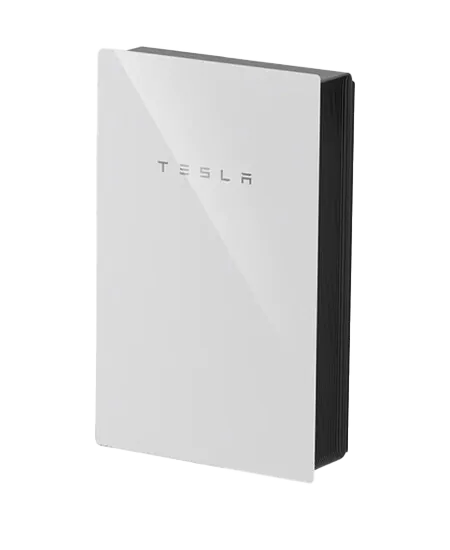
Launch the Tesla app on your mobile device. Navigate to the Energy section if you have a Powerwall or solar setup linked to your account. This is where all energy management decisions are centralized. If you do not have a home battery system, you can adjust settings directly in the vehicle’s touchscreen under Energy.

Select the Energy Controls or Powerwall settings menu. Look for the section labeled “Backup” or “Energy Management.” This area dictates how your home and vehicle interact during grid outages or standard charging cycles. Ensure you are viewing the correct property if you manage multiple Tesla energy systems.
Locate the “Backup Reserve” or “Reserve Percentage” slider. This setting determines how much of your home battery’s capacity is locked for emergencies. To maximize vehicle charging, lower this percentage. A lower reserve means more stored energy is available to charge your Tesla, but it also means less power is available if the grid goes down. Set this based on your comfort level with potential home power loss.
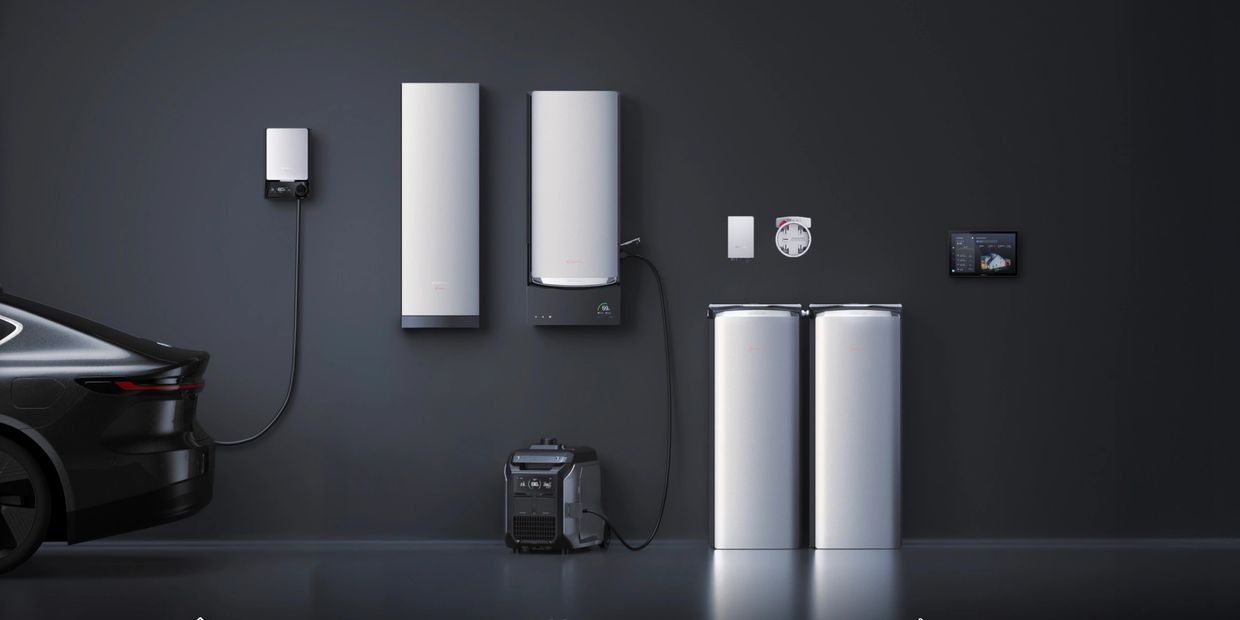
Choose your preferred charging time. Select “Scheduled” or “Scheduled Only” to ensure your car charges during off-peak hours or when your solar production is highest. Avoid “Immediate” charging if you want to manage energy flow carefully. This prevents your vehicle from drawing power during peak demand times, which can help extend effective range by utilizing cheaper, cleaner energy sources.
Review your settings to ensure they align with your goals. Save the changes. The system may take a few minutes to apply the new energy management logic. Monitor your vehicle’s charge level over the next few cycles to confirm it is reaching your desired percentage without interruption from home backup protocols.
-
Backup reserve set to desired low percentage
-
Charging schedule aligned with off-peak hours
-
Settings saved and applied
-
Vehicle charge level confirmed
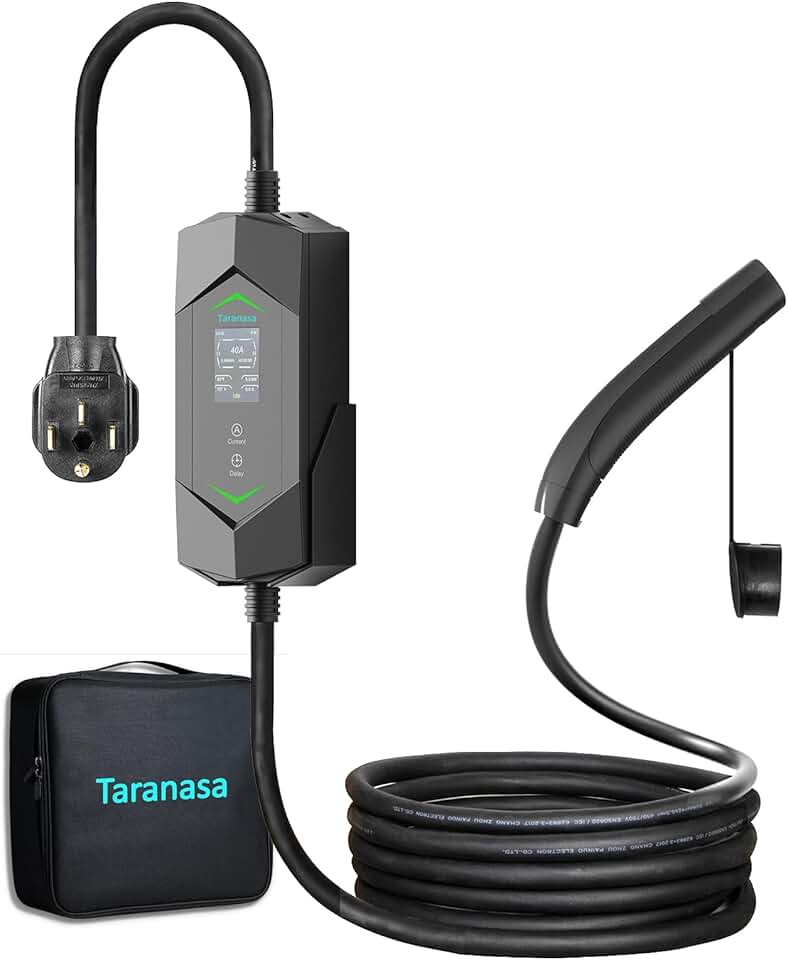

As an Amazon Associate, we may earn from qualifying purchases.
Avoid these mistakes
Even with software updates, certain configuration choices silently drain your battery. These errors don’t just reduce range; they degrade the efficiency of your energy management system over time. Fixing them is often as simple as changing a toggle, but the cost of inaction is measurable miles lost.
Leaving Sentry Mode on in parking lots
Sentry Mode uses the vehicle’s cameras and processors to monitor surroundings. When parked in a secure lot or garage, this feature draws significant power from the 12V system and the main battery if the vehicle is in "Dog Mode" or "Camp Mode" simultaneously. If you aren’t in a high-risk area, disable Sentry Mode. The energy saved can add several miles to your available range by morning.
Ignoring preconditioning settings
Preconditioning your battery before a drive or charging session improves efficiency. However, failing to schedule this via the app means the car uses energy from your range to warm or cool the battery pack upon departure. Set a departure time in the climate controls so the car uses grid power (if plugged in) or optimized battery reserve to reach thermal equilibrium before you drive. This preserves your range for actual driving.
Overlooking phantom drain from accessories
Features like Wi-Fi, Bluetooth, and cellular connectivity keep the car alive but consume power. If you leave the car idle for days, these systems can drain the 12V battery, leading to a dead car. While minor, this "phantom drain" is a common mistake. Turn off unnecessary connectivity features if you know the car will sit for more than 48 hours. Check your energy app regularly to monitor idle consumption.
Using "Chill" acceleration unnecessarily
Chill mode limits power output, which can actually reduce efficiency in stop-and-go traffic by forcing the car to work harder to maintain momentum. In highway cruising, however, it prevents rapid acceleration that wastes energy. Match your driving mode to the road type. Using "Sport" on empty highways is a waste; using "Chill" in city traffic can be inefficient. Find the balance.
Neglecting tire pressure checks
Low tire pressure increases rolling resistance, forcing the motor to use more energy to move the car. This is a mechanical error that software cannot fix. Check your tire pressure monthly. Properly inflated tires can improve range by up to 10%, a significant margin that no software setting can replicate.
Common questions about turning off Tesla features to extend range
Turning off features is a quick way to reclaim energy, but it often comes with trade-offs you should weigh before making changes. Here are the most frequent questions about managing Tesla’s energy systems in 2026.
These adjustments are small but cumulative. For most drivers, the biggest range gains come from driving habits, not software toggles. If you have a home battery, prioritizing time-based control settings can optimize when you use stored energy versus grid power.
No comments yet. Be the first to share your thoughts!