

First drive: the interface
The 2026 Cybertruck interior is as jarring as the exterior. The yoke steering wheel is the first thing you'll have to grapple with. It clears up the view of the road, but it feels more like a flight simulator controller than a truck wheel. Expect a learning curve during your first week of turns.
The massive central touchscreen dominates the dashboard, controlling almost every function of the vehicle. It’s similar to the interface in other Teslas, but the Cybertruck’s software, version 2026.8 at the time of this guide, is tailored to its unique capabilities. Initial setup is straightforward: create a driver profile, connect your phone via Bluetooth, and adjust the seating to your preference. Don’t be afraid to spend some time familiarizing yourself with the screen before you hit the road.
One thing I quickly noticed is the minimalist aesthetic. There are very few physical buttons; everything is controlled through the touchscreen. This can be a bit overwhelming at first, but it contributes to the Cybertruck’s clean and modern look. The lack of a traditional instrument cluster might bother some drivers, as all essential information is displayed on the central screen. It’s a significant departure from the familiar layouts of most trucks.
The overall feeling is one of spaciousness and solidity. The cabin is surprisingly quiet, even at highway speeds. The build quality seems excellent, and the materials feel premium. It’s a bold design, and it’s clear Tesla isn’t trying to appeal to everyone. But for those who appreciate its unconventional approach, the Cybertruck offers a driving experience unlike any other.
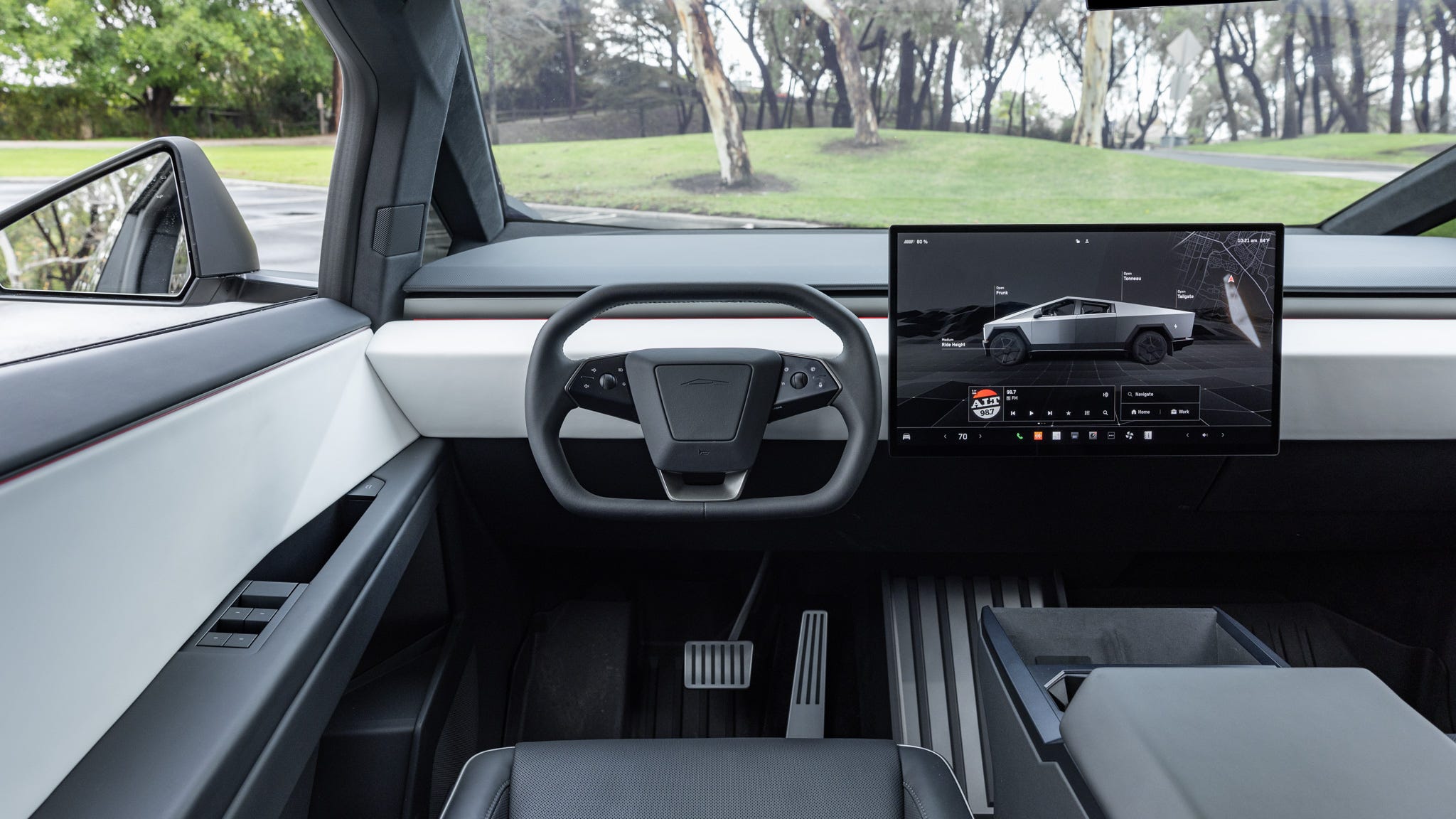
The central control panel
The Cybertruck’s central touchscreen is your command center. The main menus are fairly intuitive: Driving displays speed, efficiency, and Autopilot information; Climate Control manages temperature and ventilation; Entertainment houses the Theater and Arcade features; and Vehicle Settings allows you to customize everything from lighting to door locks. Spend time exploring each menu to understand the available options.
The most unique addition is 'Utility Mode.' This menu is dedicated to controlling the Cybertruck’s bed and ramp functions. From here, you can open and close the tonneau cover, deploy the ramp, adjust the bed lights, and access the integrated power outlets. It’s a central hub for all things related to the truck’s utility features. The ramp controls are particularly important to understand, as the ramp has weight limits and operational considerations.
Customizing the display is also straightforward. You can rearrange the icons on the home screen to prioritize the functions you use most often. Tesla allows for user profiles, so each driver can personalize their experience. Quick controls, accessed by swiping from the side of the screen, provide instant access to frequently used settings like volume and climate controls. These are a lifesaver while driving.
I found the learning curve a bit steep initially, especially when trying to locate specific settings. Tesla's documentation is helpful, but sometimes it's easier to just experiment. Don't hesitate to play around with the different menus and settings to find what works best for you. The Cybertruck’s interface is powerful, but it requires some effort to master.
- Driving: Shows speed, Autopilot status, and how much power you're burning.
- Climate Control: Temperature, fan speed, air direction.
- Entertainment: Theater, Arcade, streaming services.
- Vehicle Settings: Lights, locks, driver profiles, and more.
Using the bed and vault
The Cybertruck's bed is a defining feature, and understanding how to use it effectively is essential. Opening and closing the 'Vault' – the powered tonneau cover – is done through the touchscreen’s Utility Mode or via voice commands. The Vault is surprisingly quick and quiet in operation. Securing the bed is also managed through the touchscreen, ensuring your cargo remains protected.
Deploying the ramp is equally simple, but it's crucial to understand the weight limits. The ramp is rated for a maximum weight of 3,500 pounds, and exceeding this limit could damage the ramp or the vehicle. The touchscreen displays a warning if the weight limit is exceeded. It’s also important to ensure the area around the ramp is clear before deploying it.
The bed’s integrated power outlets are a game-changer for job sites or camping trips. These outlets provide 120V AC power, with a maximum amperage of 30 amps. This allows you to power tools, lights, or other appliances directly from the Cybertruck. It’s a fantastic feature for anyone who needs power on the go. Remember to check the total wattage of the devices you’re plugging in to avoid overloading the circuit.
I was impressed by the overall build quality and robustness of the bed and Vault. Everything feels solid and well-engineered. The bed is also surprisingly spacious, offering ample room for cargo. It’s a versatile and practical feature that truly sets the Cybertruck apart.
- The ramp holds up to 3,500 pounds. Don't push it, or you'll bend the frame.
- Bed Power Outlets: 120V AC, 30 amps maximum
- Vault Operation: Controlled via touchscreen or voice commands
Entertainment: Theater and Arcade Experience
Tesla’s Theater and Arcade features transform the Cybertruck into a mobile entertainment hub when parked. Theater allows you to stream various video services like Netflix, YouTube, and Hulu, using the Cybertruck’s large touchscreen and premium sound system. It's a great way to pass the time while Supercharging or waiting for passengers.
The Arcade offers a selection of built-in games, ranging from classic Atari titles to more modern experiences. You can connect Bluetooth controllers for a more immersive gaming experience. Tesla regularly adds new games to the Arcade, keeping the entertainment options fresh. The touchscreen's responsiveness makes gaming surprisingly enjoyable.
Streaming apps depend on where you live and when your truck was built. I've seen some owners lose access to specific services after crossing borders or during software rollouts. Check your local app drawer before you count on a Netflix binge during your next charge.
While the Theater and Arcade features are fun, they're primarily designed for use when the vehicle is stationary. Tesla prioritizes driver safety, and access to these features is restricted while driving. It’s a clever way to balance entertainment with responsible driving practices.
Off-roading modes
The Cybertruck is built for adventure, and its different driving modes cater to a variety of terrains. Standard mode is suitable for everyday driving, while Sport mode provides quicker acceleration and a more responsive steering feel. Off-Road mode is where the Cybertruck truly shines, optimizing the vehicle’s performance for challenging terrain.
The adjustable air suspension is a key component of the Cybertruck’s off-road capability. You can raise the vehicle’s ride height to increase ground clearance, allowing you to navigate obstacles more easily. Lowering the suspension improves stability at higher speeds. The touchscreen controls allow you to adjust the suspension height to suit the conditions.
I’m not an experienced off-roader, but I found the Cybertruck surprisingly capable on moderate trails. The all-wheel-drive system provides excellent traction, and the adjustable suspension helps maintain stability. It’s important to approach off-roading with caution and to be aware of your surroundings. Research the terrain and understand your vehicle’s limitations.
Other modes, like Baja, are designed for high-speed desert running, and will adjust the suspension and drivetrain accordingly. Remember to consult the owner’s manual for detailed information on each driving mode and its recommended use cases. The Cybertruck is a capable off-roader, but it’s not invincible.
- Standard: Everyday driving.
- Sport: Quicker acceleration, responsive steering.
- Off-Road: Optimized for challenging terrain.
- Baja: High-speed desert running.
Cybertruck Driving Mode Comparison
| Driving Mode | Suspension Height | Power Distribution | Traction Control | Typical Use Case |
|---|---|---|---|---|
| Standard | Normal | Balanced between efficiency and performance | Optimized for most road conditions | Daily driving, commuting |
| Sport | Raised (approx. 2 inches) | Rear-biased for quicker acceleration | Reduced stability control intervention | Enthusiastic driving, highway on-ramps |
| Off-Road | Maximum (approx. 13 inches) | Balanced for optimal traction | Aggressive traction control with locking features | Moderate to challenging off-road terrain |
| Rock | Maximum (approx. 13 inches) | Balanced for controlled crawling | Maximum traction control intervention, electronic locking differentials engaged | Severe rock crawling and obstacles |
| Utility | Adjustable, typically mid-range | Optimized for towing and hauling | Enhanced stability control | Towing, carrying heavy loads |
| Launch Control | Low | Maximum power to all wheels | Minimized traction control intervention | Achieving quickest acceleration from a standstill (track use recommended) |
Illustrative comparison based on the article research brief. Verify current pricing, limits, and product details in the official docs before relying on it.
Charging: Home, Supercharger, and Beyond
Charging the Cybertruck can be done in several ways: at home, at Tesla Superchargers, or at public charging stations. Installing a Tesla Wall Connector at home is the most convenient option, allowing you to fully charge the battery overnight. The Wall Connector requires a 240V circuit and professional installation. The charging speed depends on the amperage of the circuit and the Cybertruck’s onboard charger.
Tesla Superchargers provide the fastest charging speeds, adding significant range in a short amount of time. Superchargers are located along major highways and in urban areas. Using a Supercharger requires a Tesla account and payment method. The cost of Supercharging varies depending on location and time of day.
Public charging stations, such as those operated by Electrify America or ChargePoint, offer another option for charging on the go. However, charging speeds at public stations can vary widely. It's important to check the charging station's compatibility with the Cybertruck’s connector type. The Cybertruck uses the North American Charging Standard (NACS).
Vehicle-to-Grid (V2G) capabilities are rumored to be available on some 2026 Cybertruck models, allowing the vehicle to discharge energy back into the grid. This feature could potentially help stabilize the grid and reduce energy costs, but its availability and functionality may vary. Keep an eye on Tesla’s software updates for more information.
Troubleshooting Common Cybertruck Issues
Like any complex vehicle, the Cybertruck may encounter occasional issues. Common problems include touchscreen glitches, connectivity issues, problems with the bed or Vault, and air suspension malfunctions. Most minor issues can be resolved with a simple reboot of the touchscreen. To reboot, hold down both scroll wheels on the steering yoke until the screen goes black.
If you’re experiencing connectivity issues, ensure your phone is properly paired with the vehicle and that you have a strong cellular signal. Check Tesla’s website for information on known service outages. If the bed or Vault isn’t operating correctly, check for obstructions and ensure the ramp is fully retracted.
For more serious issues, such as air suspension malfunctions, it’s best to contact Tesla Service. You can schedule a service appointment through the Tesla app. Tesla also offers a wealth of support resources on its website, including FAQs, troubleshooting guides, and owner’s manuals. Online forums, like those on Tesla Motors Club, can also be a valuable source of information.
In case of a flat tire, refer to the owner’s manual for instructions on changing it. The Cybertruck comes equipped with a tire repair kit and a portable air compressor. It’s always a good idea to familiarize yourself with these tools and procedures before you need them. Prioritize safety and call for roadside assistance if you’re uncomfortable changing the tire yourself.
As a Cybertruck owner, what has been your biggest challenge so far?
Every new vehicle comes with a learning curve. We want to hear from the Play Tesla community about your real-world Cybertruck experience. Vote below and share your thoughts in the comments!

No comments yet. Be the first to share your thoughts!