

What changed in 12.5
Tesla’s Full Self-Driving (Supervised) 12.5 is a major change in how the car handles messy intersections and city streets. After driving with it for a week, the most obvious shifts are in how the car picks lanes and commits to left turns. It isn't perfect—you still have to keep your hands on the wheel—but it feels less like a nervous student driver than the 11.x builds.
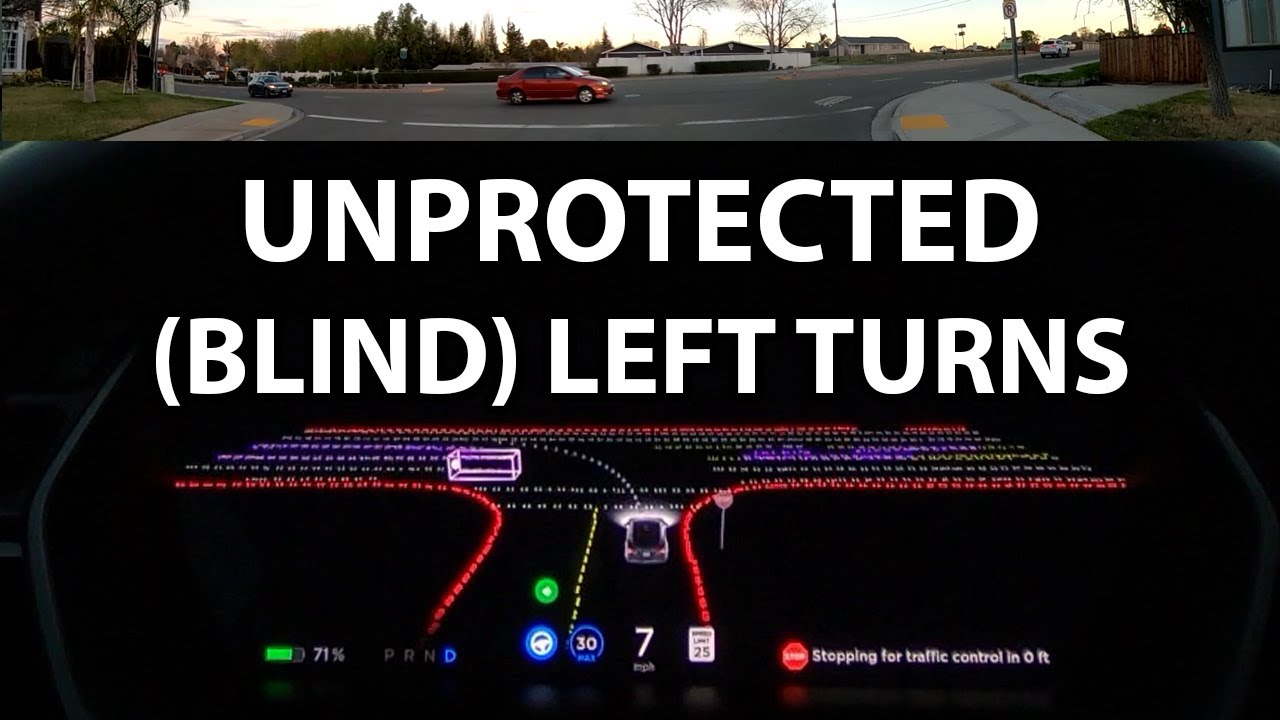
The core of the update seems to be a more confident, yet still cautious, approach to decision-making. Lane changes are smoother and more proactive, anticipating traffic flow better than before. Previously, the system could sometimes hesitate, creating awkward situations. Now, it’s more assertive, though it still prioritizes safety above all else. Unprotected left turns, historically a weak point for FSD, have seen significant improvement. It's still not flawless, but the system demonstrates a better understanding of assessing gaps in traffic.
Drivers are seeing fewer forced takeovers, though the car still hesitates at four-way stops where a human would just go. Since this is still a beta, the car is learning from every time you take over. If you have to grab the wheel because the car is acting timid, that data helps the next training cycle. Performance varies wildly between the wide roads of Phoenix and the narrow, unmarked streets of Boston.
The overall goal with 12.5 appears to be reducing the cognitive load on the driver. By handling more of the driving tasks autonomously, Tesla aims to make the experience less stressful and more enjoyable. While we aren’t at full autonomy yet, these improvements move us closer. But don't mistake 'improved' for 'perfect'; vigilance remains essential.
Navigating the Beta Interface
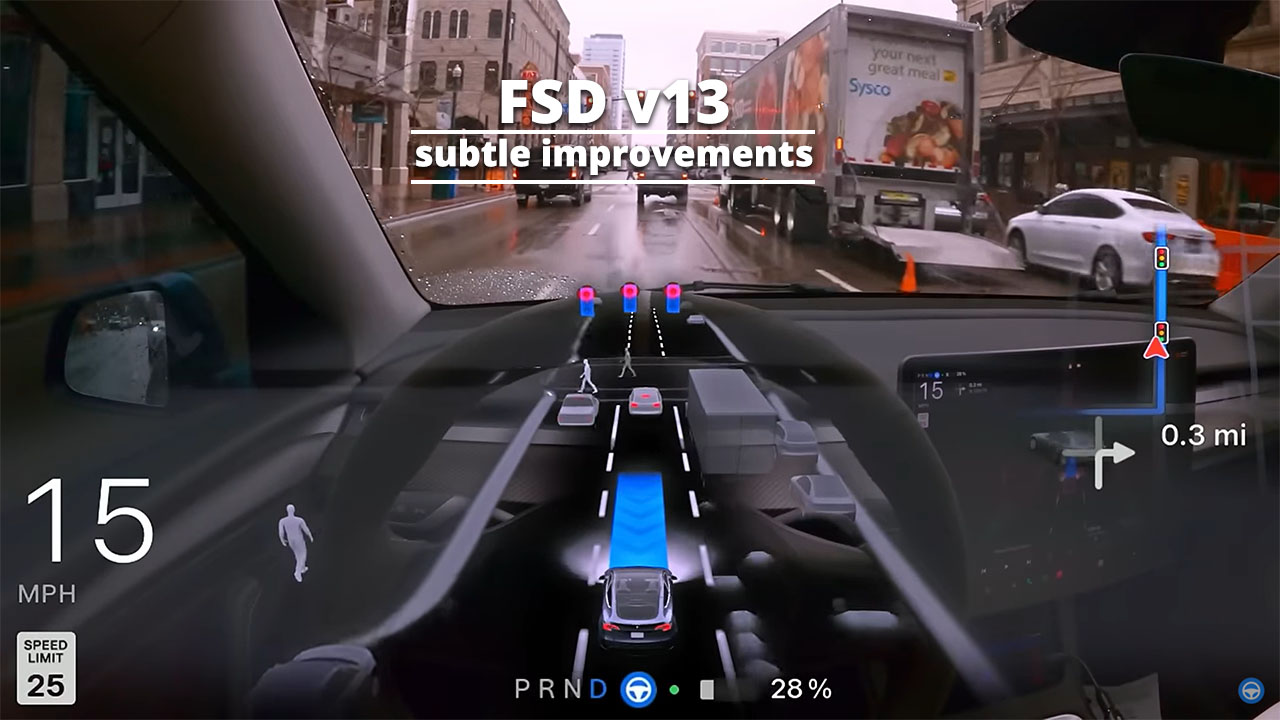
Accessing the FSD Beta is straightforward, assuming you’ve been approved by Tesla. You’ll find the option within the Autopilot settings on your vehicle’s touchscreen. Once enabled, the interface changes to provide a visual representation of the system’s understanding of its surroundings. This includes displaying lane lines, predicted trajectories of other vehicles, and the path the car intends to take. Understanding these visualizations is key to building trust in the system.
The visualization settings allow you to customize what information is displayed. You can choose to show or hide lane lines, predicted trajectories, and even the bounding boxes around detected objects. Experiment with these settings to find a configuration that suits your preferences. I find having the predicted trajectories visible is particularly helpful, as it provides insight into the system’s decision-making process.
Customizing the driving style preferences is also crucial. Tesla offers different driving styles – Chill, Average, and Assertive – which influence how aggressively the system accelerates, brakes, and changes lanes. I recommend starting with the "Average" setting and gradually experimenting with the others to find what feels most comfortable for you. Don't forget to explore the 'Report' function. Tesla actively encourages users to submit data regarding disengagements or unexpected behavior.
Reporting issues to Tesla is incredibly important. The system provides a simple way to submit logs of disengagements, allowing Tesla engineers to analyze the data and identify areas for improvement. Be as detailed as possible when submitting a report, including the specific circumstances that led to the disengagement. Your feedback directly contributes to the evolution of FSD.
- Enable FSD in the Autopilot menu.
- Customize Visualizations: Adjust lane line, trajectory, and object display.
- Select Driving Style: Choose Chill, Average, or Assertive.
- Report Issues: Submit disengagement logs with detailed descriptions.
Handling unprotected left turns
Unprotected left turns have historically been a major challenge for autonomous driving systems, and Tesla’s FSD Beta 12.5 tackles this head-on. The system now demonstrates a more sophisticated ability to assess gaps in oncoming traffic, considering factors like speed, distance, and trajectory. It’s not perfect – and still requires driver attention – but it's a marked improvement over previous versions. The system appears to be better at identifying opportunities where a safe turn can be made.
The decision-making process involves a complex algorithm that weighs the risks and benefits of attempting a turn. The system considers the speed and distance of oncoming vehicles, as well as the presence of pedestrians or cyclists. It also takes into account the road conditions and visibility. I've found that the system is generally more confident in making left turns in well-lit conditions with clear visibility. It’s more hesitant in situations where visibility is limited or traffic is heavy.
User reports suggest that the system is now more likely to attempt a left turn when a reasonable gap exists, whereas before it might have simply waited indefinitely. However, users also report occasional instances where the system hesitates unnecessarily, even when a safe turn is clearly available. This highlights the fact that the system is still learning and refining its decision-making process. It’s essential to remain vigilant and be prepared to intervene if necessary.
The success of unprotected left turns also depends on the quality of the map data. Tesla uses a combination of map data and real-time sensor data to navigate, and inaccuracies in the map data can lead to incorrect decisions. Keep in mind that the system is most effective in areas where the map data is up-to-date and accurate. Reporting map inaccuracies through the Tesla app can help improve the system's performance.
Lane Changes and Highway Driving
FSD Beta 12.5 brings refinements to lane changing behavior, particularly on highways. The system is now more proactive in suggesting lane changes to overtake slower vehicles or prepare for upcoming exits. It also appears to be better at anticipating the actions of other drivers, making lane changes smoother and more predictable. However, the system can still be overly cautious at times, refusing to change lanes even when it’s safe to do so.
Merging onto highways is generally handled well, with the system accurately assessing the speed and distance of surrounding traffic. It will adjust its speed to match the flow of traffic and find a suitable gap to merge into. Navigating complex interchanges has also improved, with the system demonstrating a better understanding of lane markings and signage. I’ve found it handles split lanes and weaving sections more confidently.
The system’s tendency to be overly cautious versus overly aggressive is a common topic of discussion among Tesla owners. While caution is generally preferable, excessive caution can be frustrating, especially when it impedes the flow of traffic. You can influence the system’s behavior to some extent with gentle steering input. A slight touch on the steering wheel can encourage it to change lanes or increase its speed.
It’s important to remember that FSD Beta is not designed to be a fully autonomous highway driving system. It still requires constant driver supervision, and you should always be prepared to take control if necessary. Pay close attention to the road ahead and be aware of the actions of other drivers.
- Proactive Lane Changes: System suggests lane changes for overtaking.
- Improved Merging: Handles highway on-ramps more effectively.
- Cautious Behavior: Can be overly hesitant in some situations.
- Steering Input: Gentle steering can influence system behavior.
City Street Navigation: The Biggest Changes
The improvements to city street navigation in FSD Beta 12.5 are arguably the most significant changes in this release. The system now handles intersections, traffic lights, pedestrian crossings, and cyclists with greater confidence and accuracy. It demonstrates a better understanding of traffic laws and social conventions, making it more adept at navigating complex urban environments. It’s still not perfect, and it requires constant driver attention, but it’s a substantial step forward.
The system’s ability to handle intersections has been significantly improved. It now correctly identifies stop signs, yield signs, and traffic lights, responding appropriately to each. It also demonstrates a better understanding of pedestrian right-of-way, yielding to pedestrians in crosswalks. However, it can still struggle with ambiguous situations, such as intersections with unclear markings or unusual traffic patterns. I’ve noticed it can sometimes hesitate at intersections, even when it’s clear to proceed.
Navigating around cyclists and pedestrians is also improved, but it remains a challenging area. The system can now better detect cyclists and pedestrians, and it will adjust its speed and trajectory to avoid collisions. However, it can still be caught off guard by unexpected movements, especially in crowded urban environments. It’s crucial to remain vigilant and be prepared to intervene if necessary. Performance can also be affected by weather conditions – rain, snow, or fog can reduce the system’s ability to detect objects.
The system’s performance in different weather conditions is something to be aware of. Rain, snow, or fog can significantly reduce the system’s ability to detect objects and accurately assess its surroundings. In these conditions, it’s even more important to drive defensively and be prepared to take control.
Troubleshooting Common Issues
Even with the improvements in FSD Beta 12.5, you’re likely to encounter occasional issues. Common problems include disengagements, phantom braking, and incorrect lane positioning. Disengagements occur when the system hands control back to the driver, typically due to uncertainty or a perceived safety risk. Phantom braking refers to the system applying the brakes unnecessarily, often in response to false positives. Incorrect lane positioning can occur when the system drifts out of its lane or fails to center itself properly.
If you experience a disengagement, try to analyze the circumstances that led to it. Was the system confused by a complex intersection? Did it encounter a pedestrian or cyclist? Was the lane markings unclear? Reporting these disengagements to Tesla is crucial for helping them improve the system. For phantom braking, ensure your emergency braking assist is set appropriately in the car settings. Sometimes, reducing sensitivity can help.
Incorrect lane positioning can often be corrected with gentle steering input. If the system is drifting out of its lane, apply a slight counter-steering force to guide it back into the center. If the problem persists, try recalibrating the Autopilot system. You can do this through the Service menu on your touchscreen. If you’re still experiencing issues, contact Tesla support for assistance.
Remember to regularly check for software updates. Tesla is constantly releasing updates to improve the performance and reliability of FSD Beta. These updates often include bug fixes and performance enhancements that can address common issues. Keeping your software up-to-date is essential for getting the most out of the system.
- Disengagements: Analyze circumstances and report to Tesla.
- Phantom Braking: Adjust emergency braking assist settings.
- Lane Positioning: Use gentle steering or recalibrate Autopilot.
- Software Updates: Ensure your system is up-to-date.
Community Insights and Future Outlook
The Tesla community is a valuable source of information about FSD Beta 12.5. Forums like Tesla Motors Club and social media platforms like Twitter are filled with user reports, tips, and feedback. The general consensus is that this update represents a significant improvement, but it’s still not perfect. Many users report fewer disengagements and a more natural driving feel, but they also acknowledge that the system still requires constant attention.
A common theme in community discussions is the desire for more customization options. Users want more control over the system’s behavior, such as the ability to adjust the sensitivity of the emergency braking assist or to define specific rules for navigating certain types of intersections. Tesla has been responsive to user feedback in the past, and it’s likely that we’ll see more customization options in future updates.
Looking ahead, the future of FSD development appears to be focused on improving the system’s ability to handle edge cases and unpredictable situations. Tesla is investing heavily in artificial intelligence and machine learning, and it’s likely that future updates will incorporate more sophisticated algorithms. The ultimate goal is to create a system that can drive safely and reliably in any environment.
It’s important to remember that predicting the future is difficult. Tesla’s plans can change, and the timeline for achieving full autonomy is uncertain. However, based on current trends and Tesla’s stated goals, it’s reasonable to expect continued progress in the years to come. This is speculation, of course, but based on what we’re seeing, the outlook is positive.

No comments yet. Be the first to share your thoughts!