

Why you need to power off
Unlike traditional combustion vehicles, Teslas do not have a dedicated "off" button for everyday use. The car is designed to remain in a low-power "sleep" mode once you lock it and walk away. For daily driving, simply locking the vehicle is sufficient to preserve battery and ensure security. However, there are specific technical scenarios where a manual power-down is necessary to resolve glitches, complete maintenance, or prepare the car for long-term storage.
The most common reason to manually power off a Tesla is to clear a software glitch. The touchscreen and vehicle systems can occasionally freeze or behave unpredictably. A full power cycle forces the vehicle's computers to reboot, often resolving minor bugs without needing a service appointment. This is effectively a "restart" for your car's operating system.
Manual power-down is also required before certain maintenance tasks. If you need to work on the vehicle's electrical systems or perform deep cleaning of the interior electronics, a complete shutdown ensures safety and prevents accidental system activation. Additionally, if you plan to store the car for an extended period, powering it off properly helps manage battery drain and ensures the vehicle enters a deep sleep state, minimizing energy loss while parked.
Turn off your Tesla from inside the cabin
If you need to shut down the vehicle while remaining seated, follow this precise sequence. The process is identical across most modern Tesla models, including the Model 3, Model Y, Model S, and Model X. This method ensures the infotainment system and auxiliary electronics power down correctly without triggering system glitches or leaving background processes running.
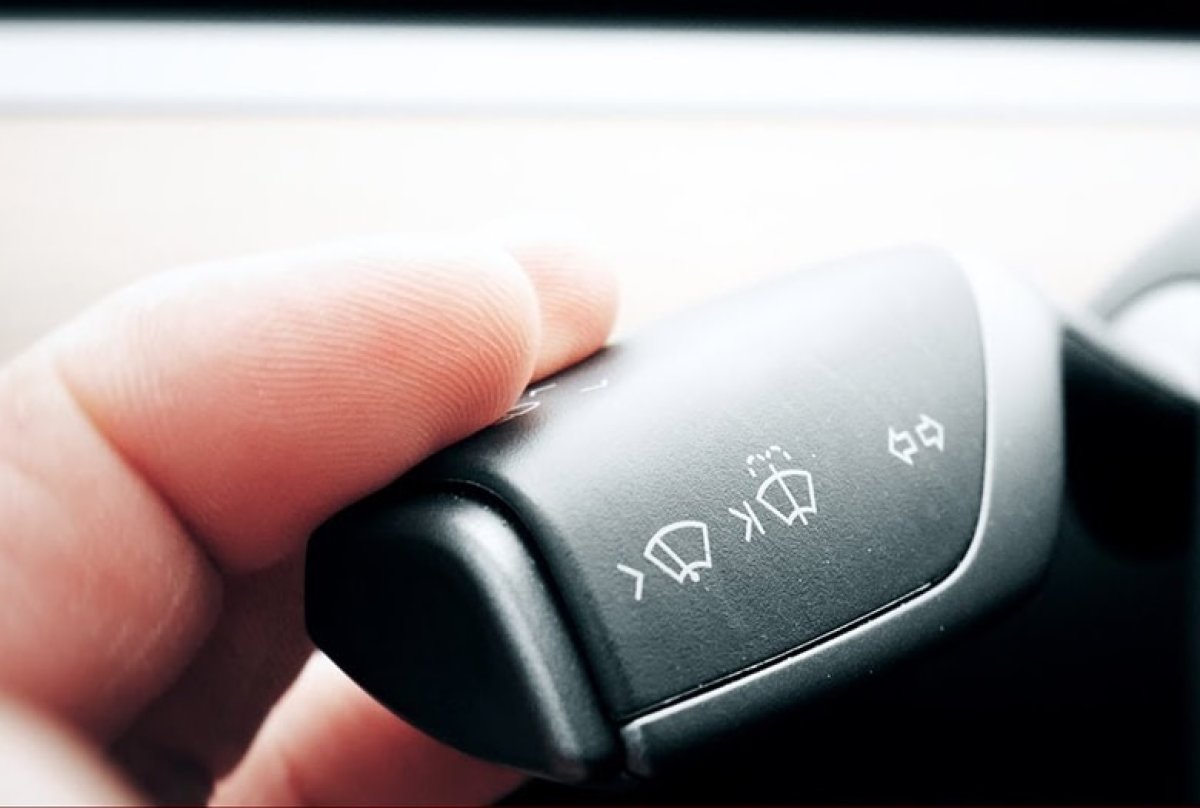
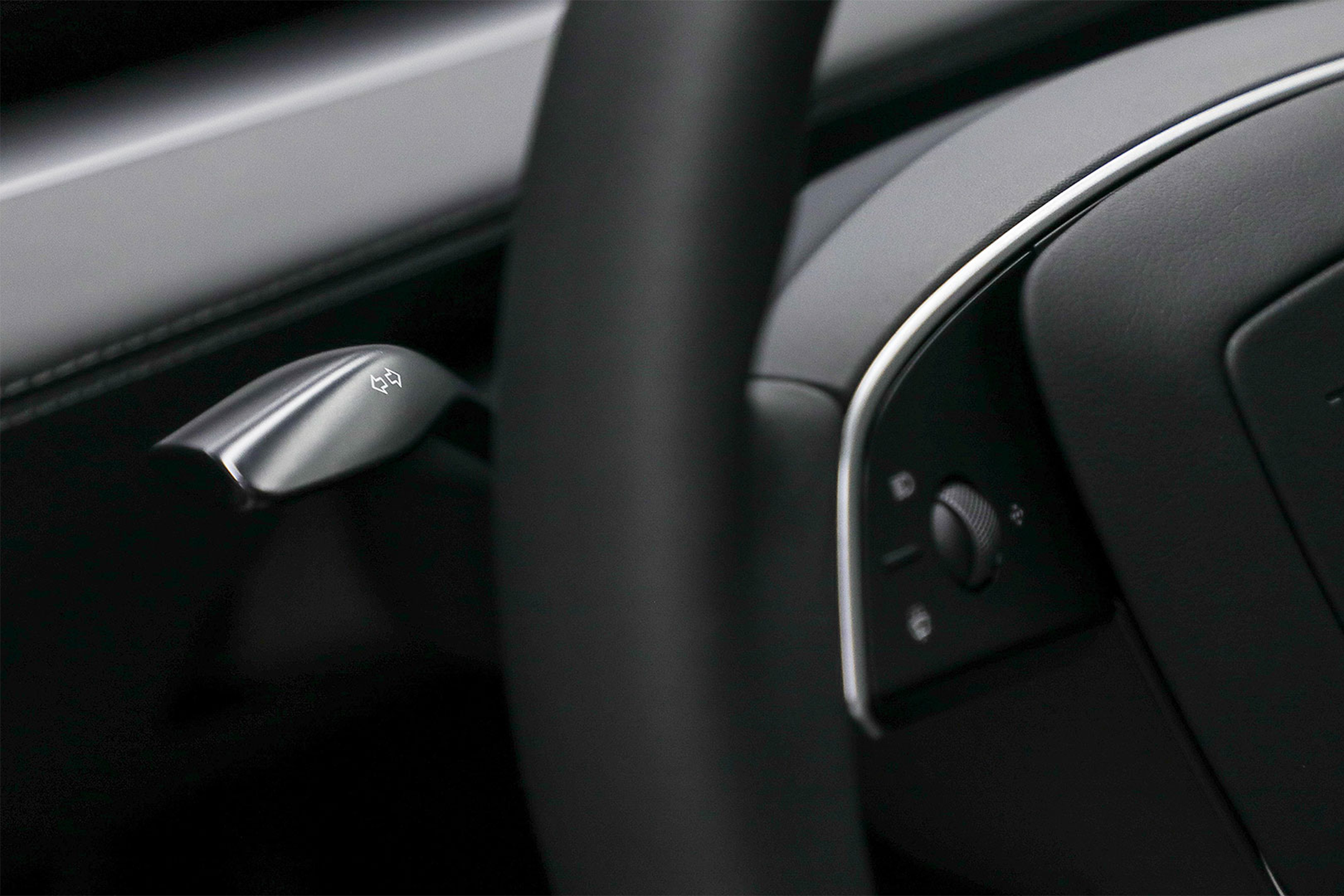
Before initiating the shutdown, ensure the vehicle is completely stationary. Press the brake pedal and shift the gear selector into Park. This is a mandatory safety interlock; the touchscreen will not allow the power-off sequence to complete if the car is in any other gear.

On the central touchscreen, tap the Controls icon located at the bottom left corner of the main menu. From the submenu that appears, select Safety. This section houses critical security and vehicle status settings.
Scroll down within the Safety menu until you see the Power Off button. Tap it. A confirmation dialog will appear asking if you are sure you want to shut down the vehicle. Confirm your selection.
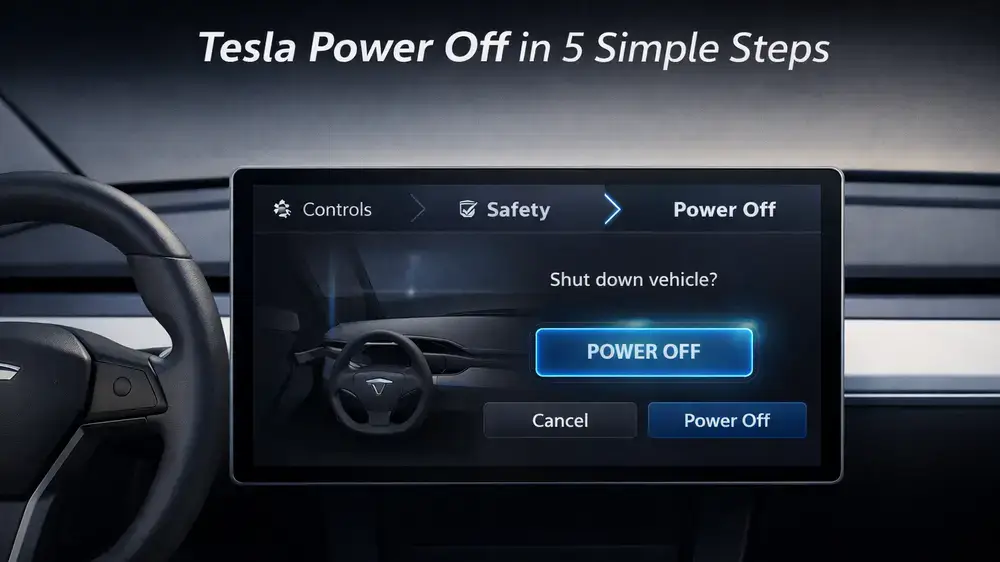
After confirming, the touchscreen and instrument cluster will go black. The vehicle requires at least two minutes to fully shut down its systems. Do not interact with the car during this time. Do not open the door, press the brake pedal, or touch the screen. Interacting with the vehicle prematurely will abort the shutdown and restart the system, potentially causing software errors.
Once the screens are dark and the vehicle has cooled its internal electronics, you can exit. If you need to see a visual confirmation of this menu path, the following video demonstrates the exact steps on a Model 3:
Confirm the car is asleep
After tapping Controls > Safety > Power Off, the touchscreen goes black and the digital instrument cluster dims. This visual change signals the initial shutdown, but the vehicle is not yet in deep sleep mode. You must wait for the electronics to fully cycle down before leaving the car unattended or starting maintenance.
Open the Tesla mobile app and check the vehicle status. If the car shows a Sleeping icon (a crescent moon), the shutdown was successful. If it still displays Driving, Parking, or Waking, the system is still active. Interacting with the car during this window can cause glitches or prevent the battery from reaching its lowest power state.

Once the app confirms the sleeping status, you can safely lock the vehicle using the key fob or the app. The car is now in its lowest power state, ready for storage or overnight parking. If you need to wake the car immediately, simply unlock it with the key fob or press the brake pedal.
Common shutdown mistakes
Even experienced owners occasionally trigger system glitches by skipping a few basic steps. The most frequent error is attempting to power off the vehicle while it is still in motion. The touchscreen will block the "Power Off" command if the car detects movement, but some drivers try to force the issue by navigating menus rapidly. This often results in a frozen interface or a reboot loop that requires a manual scroll-wheel restart. Always ensure the vehicle is completely stationary and in Park before initiating the shutdown sequence.
Another common pitfall is failing to wait for the system to fully sleep before interacting with the car again. The shutdown process involves more than just turning off the screen; the vehicle’s computers need time to close background processes and enter low-power mode. If you press the brake pedal or open the door immediately after selecting "Power Off," the car will wake up instantly, undoing your effort. Wait at least 30 to 60 seconds to allow the interior lights to dim and the screens to go dark completely.
Finally, many users confuse "Sleep Mode" with a full power-down. Simply locking the car or leaving it unattended will eventually put the vehicle to sleep, but it does not perform the same diagnostic reset as a manual shutdown. If you are troubleshooting a glitch or trying to conserve battery during long-term storage, use the explicit "Power Off" command rather than relying on the car’s automatic sleep cycle. This ensures all systems are truly halted and prevents potential software hiccups upon your return.
Powering the vehicle back on
Restarting a Tesla is straightforward, but following the correct sequence ensures the high-voltage systems engage smoothly without triggering error codes or glitches. Unlike traditional vehicles with a simple ignition switch, the Tesla’s computer requires a specific handshake to wake the drive unit, climate control, and infotainment systems.
Follow these steps to power up your vehicle safely after a manual shutdown.
Ensure the vehicle is completely stationary. Press the brake pedal firmly and shift the gear selector into Park. This is the primary safety interlock; the drive motors will not engage unless the car is in Park.
Pressing the brake pedal is the universal wake-up signal for the vehicle’s computer. This action tells the system you are ready to drive, prompting the powertrain to initialize and the touchscreen to light up if it was in sleep mode.
Opening the driver’s side door also triggers the power-on sequence. As the door unlatches, the vehicle detects your presence, wakes the cabin systems, and prepares the drive unit for movement. This is the most common way to restart the car after a long shutdown.
Once powered on, wait a moment for the touchscreen to fully load. Check that the gear selector shows "P" and that there are no active warning lights. The vehicle is now ready to shift into Drive or Reverse.
If the vehicle does not respond to the brake pedal or door opening, wait a few seconds and try again. The computer may be in a deep sleep state, and a second attempt usually resolves the delay. Avoid forcing the gear selector or repeatedly pressing the brake, as this can confuse the system.
No comments yet. Be the first to share your thoughts!